
Base de conocimiento
Todas las guías, completas, aquí mismo en su portal.
Your Website
Settings on communitynewspapers.com that your own team can change, and what feeds them.
Newsletter popup — turning it on or off
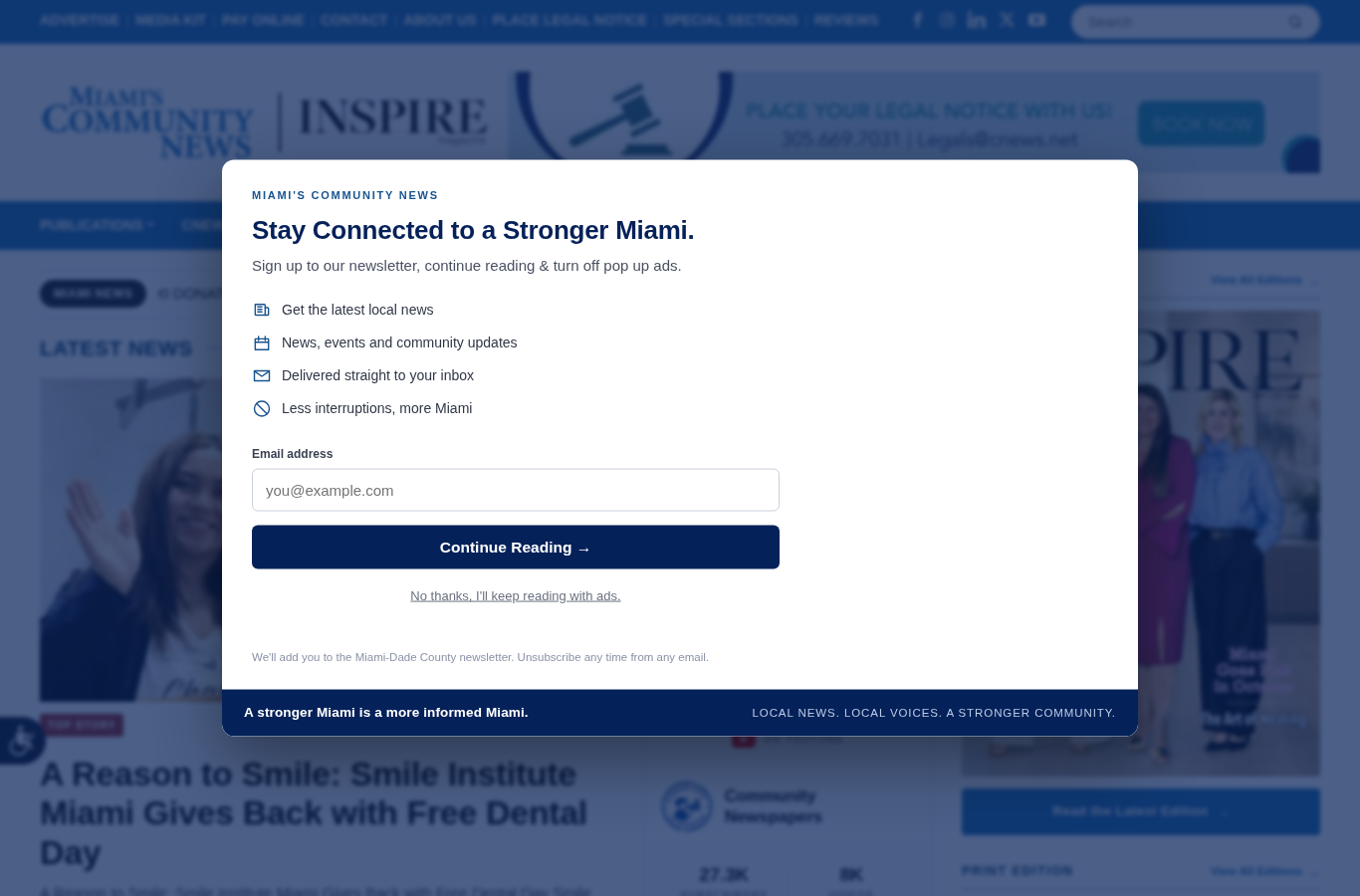
The newsletter popup is the “Stay Connected to a Stronger Miami” email sign-up box that appears over the page on communitynewspapers.com. Your team can switch it on or off at any time from inside WordPress. You do not need to call anyone, and you do not need to clear a cache — saving does that for you.
Who can do this: anyone signed in to WordPress as an Administrator or an Editor. Writers and contributors will not see this screen.
Where it is: sign in at communitynewspapers.com/wp-admin, then click
Newsletter Popup in the black menu down the left-hand side.
To turn it off:
- Open Newsletter Popup.
- Click the circle next to Off — do not show it to anyone.
- Click Save changes.
A green bar confirms the change, and readers stop seeing the popup straight away.
To turn it back on: the same screen, choose On — show the sign-up box to readers, then Save changes. The popup comes back exactly as it was. Nothing is lost while it is off, and everyone who had already signed up stays signed up.
The coloured bar at the top of that screen always tells you the current state, so the screen itself is the authoritative answer to “is it on right now?”
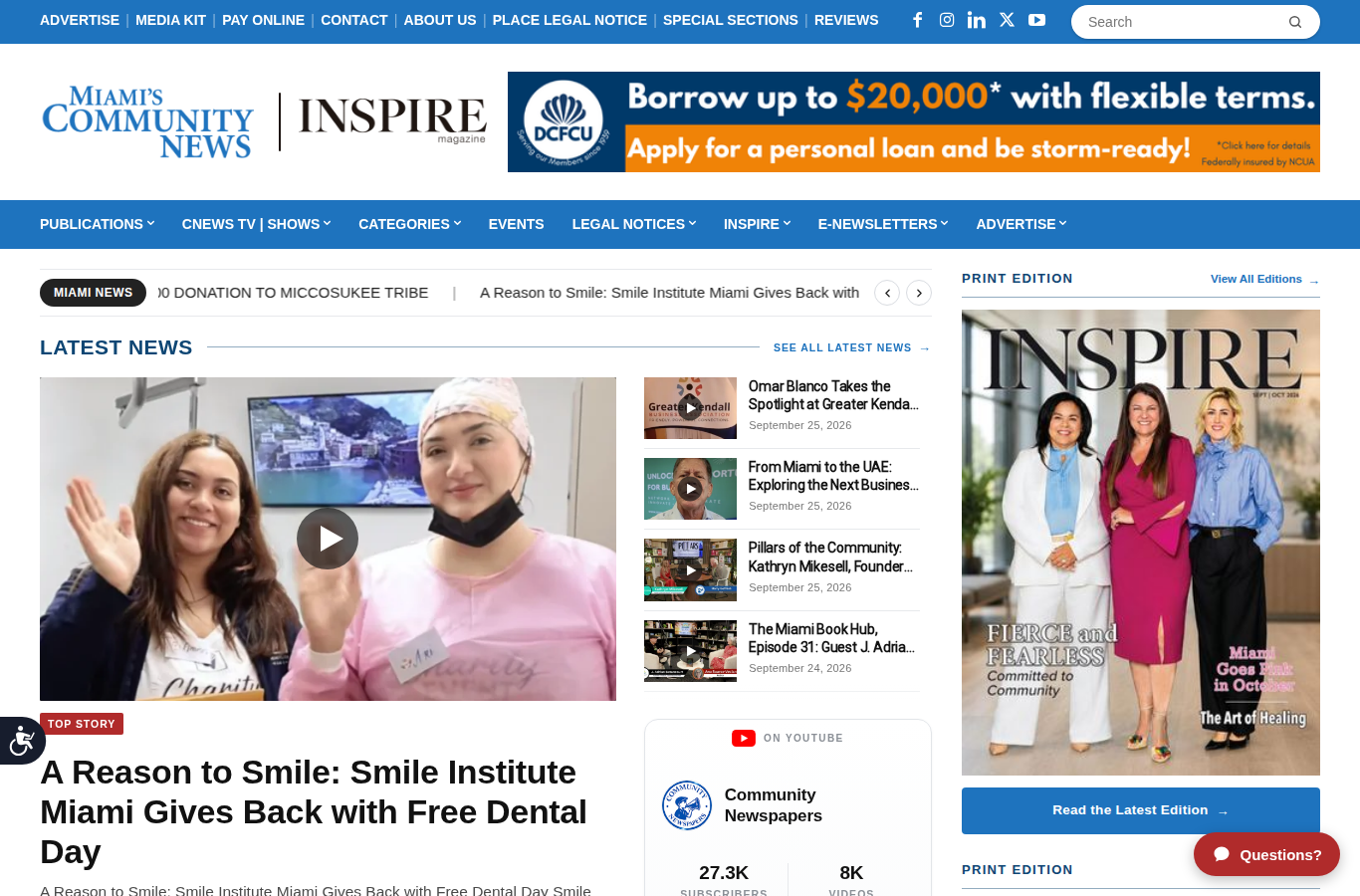
Checking it worked. Open communitynewspapers.com in a private window (Chrome: File → New Incognito Window; Safari: File → New Private Window).
Good to know
- Turning it off does not delete anything. The wording, the sign-up list and the settings all stay exactly as they are.
- It applies to the whole website — every section and every story page, on phones and on computers.
- You do not need to clear any cache. Saving the page does that automatically.
- Your banner and sidebar advertising is not affected either way. That was measured across four page types on both desktop and mobile when the switch was built: identical ad counts with the popup on and with it off.
Newsletter popup — which ad group fills the sponsor box
When the popup is on, it has a sponsor panel on the right-hand side, about 330 pixels wide on a desktop screen. This article names exactly which Advanced Ads group fills that panel, so your team can manage it directly.
The two groups that feed it. The popup picks one of two groups based on the width of the reader's screen — the same desktop/mobile split the old pop-up ads used:
| Reader's screen | Advanced Ads group | Group ID |
|---|---|---|
| Desktop & tablet — 700px and wider | POPUP-DESKTOPpopup-desktop |
15237 |
| Phone — narrower than 700px | POPUP-MOBILEpopup-mobile |
15238 |
Open them directly (you must be signed in to WordPress first):
- POPUP-DESKTOP → Advanced Ads › Groups › POPUP-DESKTOP
- POPUP-MOBILE → Advanced Ads › Groups › POPUP-MOBILE
Or navigate by hand: Advanced Ads → Groups, then find the rows named POPUP-DESKTOP and POPUP-MOBILE.
story-pop-up or popup-and-layer-ads will not change
what the popup shows. Only the two groups above control the sponsor panel.Current state — checked 27 September 2026. Neither group is switched off
Both groups exist, are active, and are correctly wired to the popup. Nothing has been disabled. What they do not have is any advertising to show — the member list that Advanced Ads reads when it renders a group is currently empty on both, and separately, every ad historically assigned to them has passed its end date:
| Group | Ads it renders now | Ads historically assigned |
|---|---|---|
| POPUP-DESKTOP (15237) | 0 | 34 — 31 expired, 2 drafts, 1 published but past its end date |
| POPUP-MOBILE (15238) | 0 | 31 — 28 expired, 2 drafts, 1 published but past its end date |
The single remaining published ad in both groups is Sanctuary of the Arts Ballet Classics, whose end date was 31 May 2026.
What this means in practice. There is no switch to flip back on — the popup's sponsor panel is empty because the groups have no live creative in them, not because anything was turned off. To put advertising back in front of readers:
- Open Advanced Ads → Groups and open POPUP-DESKTOP (and POPUP-MOBILE for phone readers).
- Add the ad you want the popup to carry to the group's ad list.
- On that ad itself, check its expiry / end date is in the future. An ad past its end date will sit in the group and still show nothing.
- Save. Then check in a private window with the popup switched on.
If you would like us to handle the popup's sponsor inventory as part of your ad operations rather than managing it in-house, raise it on a support ticket and we will scope it.
Posting Stories
Where a story goes: the geographic area, the topic, and the author — plus what to do when nothing fits.
Where stories go — the four steps for every story
Every story gets the same four decisions, in this order. They take a few seconds each, and getting them right is what puts the story in front of the right readers.
- Geographic area — one. Choose the area the story is about. If you are not sure which area to choose, choose Miami-Dade. See Choosing the geographic area below for the exact row to tick.
- Topic — one, when you know it. What the story is actually about. A story about cars goes in the cars topic. See Topic categories below for the current list.
- If no topic is genuinely right — add a tag instead. Do not force the story into the nearest topic that is only roughly right. See When no topic fits below.
- Author — always. Select the author's name from the author list.
This follows the posting instruction issued to editorial staff by the Publisher on 27 September 2026. Everything below it was read from the live site on 27 September 2026.
Choosing the geographic area — the row to tick for each area
Choose the area by the area's name — the place the story is about. In the category list most areas currently appear as “<Area> Community News” rather than the bare area name. The table below gives the exact row to tick for each of the areas on the Publisher's list, read from the live site on 27 September 2026.
| The area | Tick this row | Stories in it now |
|---|---|---|
| Aventura | Aventura | 4,228 |
| Biscayne | Biscayne Bay Tribune | 8,471 |
| Broward | Broward County Community News | 1,064 |
| Coral Gables | Coral Gables Community News | 8,541 |
| Cutler Bay | Cutler Bay Community News | 6,025 |
| Kendall | Kendall Community News | 7,130 |
| Miami-Dade use this when unsure | Miami-Dade Community News | 3,026 |
| Miami Beach | Miami Beach Community News | 5,270 |
| Miami Gardens | Miami Gardens Community News | 382 |
| Miramar | Miramar Community News | 244 |
| North Miami | North Miami & North Miami Beach News | 563 |
| Opa-Locka | Opa-Locka | 266 |
| Palmetto Bay | Palmetto Bay Community News | 5,985 |
| Pinecrest | Pinecrest Community News | 8,193 |
| South Miami | South Miami | 5,151 |
| Sunny Isles | Sunny Isles Community News | 1,773 |
| West Park | West Park Community News | 894 |
[RETIRED] are not for use. They are kept only so
that older web addresses keep working. Every one of them holds zero stories.One area, not several. A story belongs to the area it is about. If it genuinely covers the whole county rather than one city, Miami-Dade Community News is the right choice.
Topic categories — the current list
The topic is what the story is about, as distinct from where it is. Most topics sit under a parent beat. Pick the child, not the parent — the child is the one readers browse to.
| Parent beat | Pick one of these |
|---|---|
| Arts & Culture | Music & Concerts · Visual Arts & Artists · Theater & Performing Arts · Museums & Galleries |
| Colleges & Universities | Florida International University · University Of Miami · Nova Southeastern University · Barry University · St. Thomas University · Miami Dade College |
| Civic & Trade Associations | Chamber of Commerce · Rotary Club · Kiwanis Club · Latin Builders Association Community News · Elks Lodge · Junior League · Lions Club · Toastmasters |
| Health | Baptist Health South Florida · Nicklaus Children’s Hospital · Mount Sinai Medical Center · Jackson Health System |
| Government Agencies | Miami-Dade County Public Schools · Miami-Dade Animal Services · Mosquito Control |
| Transportation | Miami International Airport · PortMiami · Metrorail/Metromover · Brightline · Traffic & Roads |
| Sports News | Tennis |
| Legal and Public Notices | Miami-Dade County Legal and Public Notices · Broward County Legal & Public Notices · City Legal Notices City Legal Notices has its own per-city rows; Miami-Dade County Legal and Public Notices has Governmental Public Notices and Other Notices beneath it. |
Stand-alone topics — these have no parent, so tick them directly:
Newsletters · Community Press Releases · Interviews · Automotive Car Reviews · Positive People · Dining & Entertainment · Police & Public Safety · Education · Cannabis News · Small Business · Veterans · Hurricane & Storm Preparedness · Pets & Animal Welfare · Environment & Climate · Miami Marlins · Banking & Credit Unions · Around Town · Syndicated Miami News · Golf · Marketing · Political · Miami Dolphins · Retail & Shopping · Workforce & Jobs · Community Health · Miami Community Events | Photo Gallery · Affordable Housing · Water Safety & Drowning Prevention · Miami Heat · Miami Hurricanes · Pickleball · Technology · Trending Miami · Know Your Rights · Real Estate.
One topic is enough. Pick the single topic that best describes the story. If two feel equally right, choose the one a reader would look under.
When no topic fits — add a tag instead
If none of the topics in the list is genuinely correct for a story, leave the topic unticked and
add a tag describing the story in plain words — lowercase, as you would say it:
hurricane season, food trucks, charter schools.
Why a tag, and not the nearest topic. A story’s web address is built from its topic. So a wrongly-ticked topic does two visible things: it can change the story’s web address, and it puts the story on a section page where it does not belong. A tag does neither — it is additive, it never changes the address, and it never files the story into a section.
The order of preference, plainly:
- A topic from the list that is genuinely right — best.
- No topic, plus a tag in plain words — good, and better than a wrong topic.
- A topic that is only roughly right — avoid.
- Uncategorized — never.
Selecting the author
Every story needs an author selected from the author list — this might be Grant Miller, Community News Releases, J. Adrian Betancourt, or another name on the list.
Three names worth knowing exactly as the list spells them, read from the live site on 27 September 2026:
| You are looking for | The list shows |
|---|---|
| Grant Miller | Grant Miller, Publisher |
| A community news release | Community News Releases — plural, with an s |
| J. Adrian Betancourt | J. Adrian Betancourt, Host The Miami Book Hub |
The author list and the Author categories are two different things. The author list is the byline — who wrote the story. There are also category rows named after columnists and hosts; those group a columnist’s or a host’s own body of work. Selecting the byline is the step every story needs.
For Customers
Reading your reports, billing & invoices, how delivery works, and how to get help.
How to read your reports
Your Reports tab is the full record of what we've delivered — each item is documented once, with proof (screenshots, links, dates), so you always know exactly what's been done and what's still in progress.
Reports are organized by scope: completed work, work in progress, and anything waiting on you (like an approval or a signature). If a report references something you don't recognize, open a support ticket and reference the report date — our team can walk you through it.
Billing & invoices
Your Pay tab is your account statement — every invoice issued to you, its status, and a secure checkout link. Invoices are generated as work is scoped and delivered; you'll always see the amount, what it covers, and the due date before paying.
Payment links open a secure, hosted checkout — we never ask for card details over email or chat. Once a payment clears, a receipt is emailed to you automatically and the invoice status updates on your dashboard.
How project delivery works
Work is scoped, built, and verified before it ever reaches you — your Projects tab tracks active work and milestones, and your Assets tab is where finished deliverables live once they're released.
Depending on the engagement, deliverables unlock as milestones are completed, an invoice is settled, or an agreement is signed — your dashboard always tells you which condition applies to what's pending. Anything proposed for future work (but not yet started) shows up on your Proposals tab for your review first — nothing starts without your sign-off.
How to submit a support request
Three ways to reach us from any customer dashboard page:
- Chat — tap the green chat bubble in the bottom-right corner of any page.
- Helpdesk ticket — use the Support/Helpdesk link in the page footer; it lands directly in our support queue.
- Email — support@needawebnow.com, a monitored, staffed inbox.
See Support & Tickets below for what to include so we can help faster.
Support & Tickets
How to reach us, what to expect, and how to write a ticket that gets answered fast.
How to reach us
Whichever dashboard you're in — customer, affiliate, or otherwise — support is reachable the same three ways:
- Chat — the green bubble in the bottom-right corner of any page.
- Helpdesk ticket — logged directly into our support queue, not an unmonitored inbox.
- Email — support@needawebnow.com, checked by our team.
What to expect after you submit a request
Chat is the fastest way to reach someone live. Tickets and emails are reviewed by our team and followed up as quickly as we can — typically the same business day, and always within one business day for anything that isn't urgent. If something is time-sensitive, say so in your message and mark it Urgent on the ticket form so it's triaged first.
What to include in a ticket for the fastest answer
The more context you give us up front, the faster we can help. A good ticket includes:
- Your name and the best email to reach you at.
- A clear one-line subject (what's this about?).
- What you were trying to do, and what happened instead.
- Which dashboard/page you were on, if relevant.
- Priority — Low, Normal, High, or Urgent.
You don't need to diagnose the problem yourself — just describe what you saw. Our team will follow up directly.
NeedAWebNow.com · Portal del Cliente